
How to Install a 2.5-inch Crucial® SSD in a Mac® System
Before you begin installation, use our Upgrade Advisor to verify that the SSD you purchased is compatible with your computer, as not all Mac systems are upgradeable. When you’ve done that, you’re ready to get started.
These instructions are specific to Intel-based Apple systems. In late 2020, Apple transitioned to Apple Silicon for their product lines, and the requirements for installation and data migration changed. We do not have compatible internal SSDs available for these models, but note that even if you have another part which is compatible with Apple Silicon-based systems, these steps will not apply to that installation.
Part 1: Prepare
- Gather supplies
You’ll need your Crucial SSD, a screwdriver, your Mac system’s owner’s manual (which will specify the type of screwdriver you need), and a SATA-to-USB cable or 2.5-inch SSD/hard drive enclosure (to connect the Crucial SSD to a USB port to partition and copy your operating system to it). Additionally, if you’ll be installing into:- a Mac Pro® system manufactured between 2006 and 2012 or
- an iMac® from almost any year you’ll need a 2.5 inch to 3.5 inch convertor because these systems have larger storage bays than other Mac computers.
- Set the spacer aside
In the box with your SSD is a spacer (it looks like a black bracket). Set it aside for now – it won’t come into play until later in the process, and based on your type of Mac system, you may not even need it.
- Back up important files
Before starting the install process, save any important files on your computer to a USB flash drive or external storage drive.
- Connect the SSD to your Mac system
Using a SATA-to-USB cable, attach one side to the SSD and the other end to your computer. When handling your SSD, try not to touch its gold connector pins with your fingers. - Determine your version of macOS®
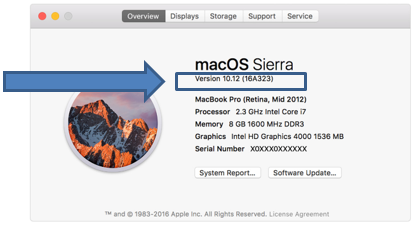
There are many versions of the Mac operating system (called macOS), and you need to determine which version you’re using. Click on the Apple® icon in the upper left corner of your screen, then click About this Mac which will display your version number. Here’s where to find the version number on the screen you’ll see:
4. Format your SSD
Before you can use your SSD, it needs to be initialized, partitioned, and formatted. To do this, you need to go into Disk Utility, which comes free with Mac systems. Access this by clicking on the storage drive on your desktop, then clicking on the Applications folder, then the Utilities folder, then Disk Utility. Alternatively, you can click on the Applications folder in your dock, then follow the additional steps noted above. When you’re in Disk Utility, you will see a message telling you that the SSD cannot be read by the computer. No need to fear – this is normal. Click on the Initialize button that appears in the message and your Crucial SSD will be visible in Disk Utility. From here, follow the steps below that correspond to your version of OS X.
OS X El Capitan or newer (version 10.11 or higher)
- Highlight your SSD and click the Erase button.
- Type in a name for the new partition (this where you’ll save data on the drive and it’ll be the name for your SSD). On the menu settings, verify that the partition is set to GUID Partition Table.
- Verify that the selected format defaults to Mac OS Extended (Journaled).
- Select Erase. The drive will now be partitioned, formatted, and ready for use.
OS X Yosemite or earlier (version numbers less than 10.11)
- Highlight your SSD and click the Partition tab.
- Click Options and verify that it's set to GUID Partition Table.
- Select Partition 1 if you want to use the entire SSD as a single partition (if you don’t know what a partition is, select this option). You’ll now have the opportunity to give your SSD a name.
- Verify that the selected format defaults to Mac OS Extended (Journaled).
- Select Partition. The drive will now be partitioned, formatted, and ready for use.
Your SSD will now be visible with the new name you gave it. Now you’re ready to copy everything on your Mac’s existing drive to your new SSD. That way, when you install the SSD, your data will be on it and everything will be the same, but significantly faster.
Part 2: Copy
There are two methods for copying your data on a Mac system, and you’ll need to follow the method designed for your version of macOS. Note: Both methods will only clone a Mac partition. To see how to clone a Boot Camp® Windows® partition, see this video. (If you don’t know what a Boot Camp Windows partition is, no need to worry – just use the method below that matches your OS.)
OSX El Capitan or newer (version 10.11 or higher): How to copy data to a Crucial SSD
- Shut down your system. When your screen has powered off, press your system’s power button then immediately press and hold the Command and R keys to reboot your Mac and have it go to a special window called OS X Utilities.
- You’ll now see several applications. Select Disk Utility, then Continue.
- On the left side of the Disk Utility window, you’ll see an External section that indicates any external storage drives attached to your Mac. Because your Crucial SSD is plugged in via the SATA-to-USB cable, it will appear here. Underneath the name of your Crucial SSD, you will see the partition you named when you formatted your drive. Click on this partition to highlight it.
- Now click on the Edit menu in the upper left corner of your screen and select the Restore option.
- In the dropdown menu that appears, select the name of your existing drive's partition (if it doesn’t automatically appear as the default choice). You can verify that you selected the right partition by looking under the Internal section on the left navigation because your existing drive is inside your Mac and the existing drive’s partition will appear here.
- Now click Restore, which will start the process of restoring (“copying”) your data from your existing storage drive to your new SSD.
- It’ll take a while for everything to copy. Leave your computer for a while and go do something fun!
- When everything has copied over, click Done. The partition you named on your Crucial SSD should now have the same name as the partition on the existing drive you copied over. Now it’s time to shut down your system and physically install the SSD. You’re over halfway done!
OSX Yosemite or earlier (version numbers less than 10.11): How to copy data to a Crucial SSD
Note: If you use the Apple FileVault® program for encryption, you’ll need to turn it off and decrypt your system’s existing storage drive before following the steps below. When you’ve physically installed your new Crucial SSD, you can then turn FileVault back on. If you don’t know what FileVault is, no need to worry :-)
- Shut down your system. When your screen has powered off, press your system’s power button then immediately press and hold the Option key on your keyboard to reboot your Mac and have it go to a special window called Boot Manager. From here, select Recovery-10.x.
- You’ll now see several applications. Select Disk Utility, then Continue.
- Disk Utility will now ask you to select the partition you want to copy to your new SSD. Simply select the main partition located underneath your existing storage drive. It should be easy to find this because of how your drives and their associated partitions appear onscreen. The top-left section displays the storage drives inside your computer and the partitions on each one. All of these drives will have a gray icon next to them, indicating they’re physically installed in your system. Select the partition for your existing storage drive, which will display a new set of options on the right side of the window.
- Select the Restore option.
- Now you want to tell Disk Utility which partition you want it to restore (“copy”) to your new Crucial SSD. Click and drag the partition you just selected to the Source field (if it doesn’t automatically appear here).
- Now it’s time to tell Disk Utility where to copy your data. This is called selecting your “destination” drive and you want to select the partition you named on your Crucial SSD when you formatted it. This is easy to find because in the left column is a divider line and below this is a list of all the external drives that are plugged into your Mac and each drive’s associated partitions. Because your Crucial SSD is plugged in via the SATA-to-USB cable, it should appear in this section and have an orange icon next to it. Click and drag the SSD’s partition to the Destination option.
- Click the Restore button, which triggers the start of the data copying process. Note that in some older versions of macOS, you might see a checkbox where you will need to select Erase Destination before Disk Utility will allow you to copy your data. If you see this checkbox, just select it to proceed.
- It’ll take a while for everything to copy. Leave your computer for a bit and go do something fun!
- When your data has finished copying, verify that everything has copied correctly. To do this, repeat Step 1 in this process to go into Boot Manager. From here, you should now see multiple drives to boot from – some of which have the same names. This is normal because when you copied over your existing drive to your new SSD, the SSD received the same name as your existing drive’s partition, but the SSD should appear here with an orange icon above it, indicating that it’s plugged into your Mac via the USB cable. Select the SSD to have your system boot from it. Everything should now look like your old setup, except it will be faster. Now it’s time to shut your system back down and get ready to physically install the SSD. You’re over halfway done!
Part 3: Install
The physical installation process varies based on the type of Mac system you have, so follow the step-by-step process for your Mac using our system-specific Mac install guides.
Congratulations!
Now that you’re an expert SSD installer, watch out! Your friends and family might just start asking you to do their installs! :-)
©2026 Micron Technology, Inc. All rights reserved. Information, products, and/or specifications are subject to change without notice. Neither Crucial nor Micron Technology, Inc. is responsible for omissions or errors in typography or photography. Micron, the Micron logo, Crucial, and the Crucial logo are trademarks or registered trademarks of Micron Technology, Inc. Mac, Mac Pro, IMac, Apple, macOS, OS X, Boot Camp, and FileVault are trademarks of Apple Inc., registered in the U.S. and other countries. Windows is either a registered trademark or trademark of Microsoft Corporation in the United States and/or other countries. All other trademarks are the property of their respective owners.